Assigning Promotions to Store Locations
Designated Store Managers will be able to assign Promotions to various store locations.
To manage promotions, click the Plans menu option under the Admin menu on the left-hand menu.
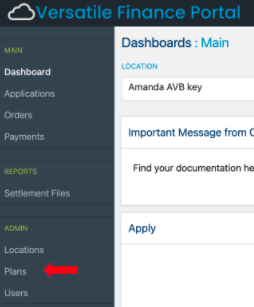
After clicking the Plans menu link, the Plan Listing Screen will show all available financing plans available to your organization.
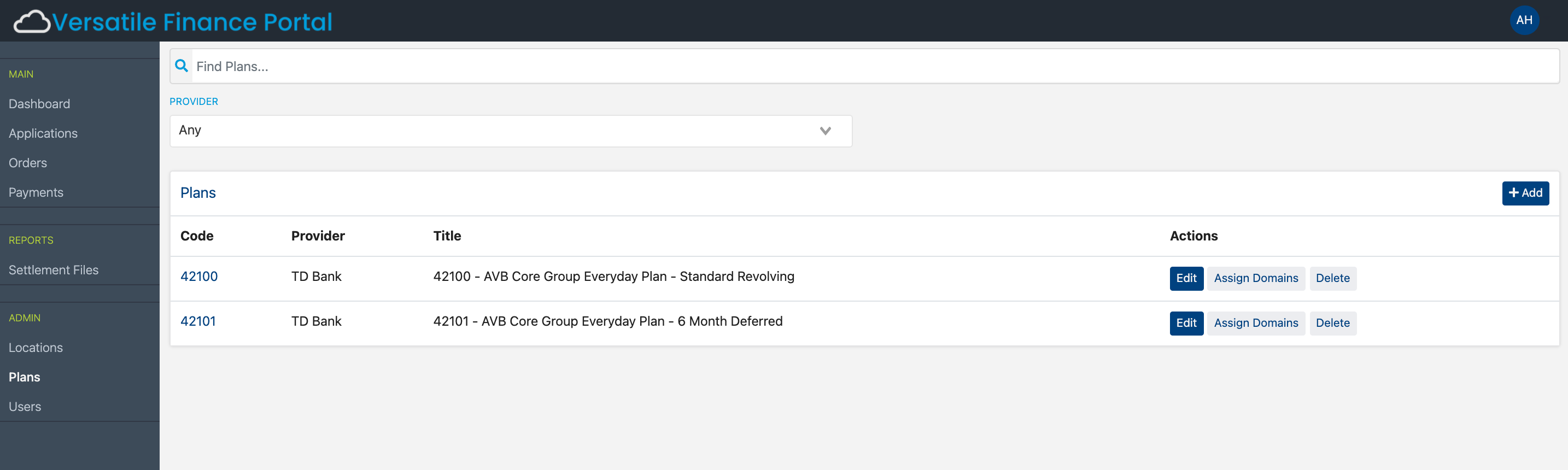
The Promotions Listing Screen will display the following information regarding each promotion:
- Code - A unique number assigned to a promotion by the financing provider
- Provider - The financing provider of the promotion
- Name - The name of the promotion. This is the name that is displayed to the sales associate during the creation of a Sales Order on the platform
To change the stores to which the plan is assigned, locate the plan in the listing and click the Assign Domains button and then check which locations you would like to be active.
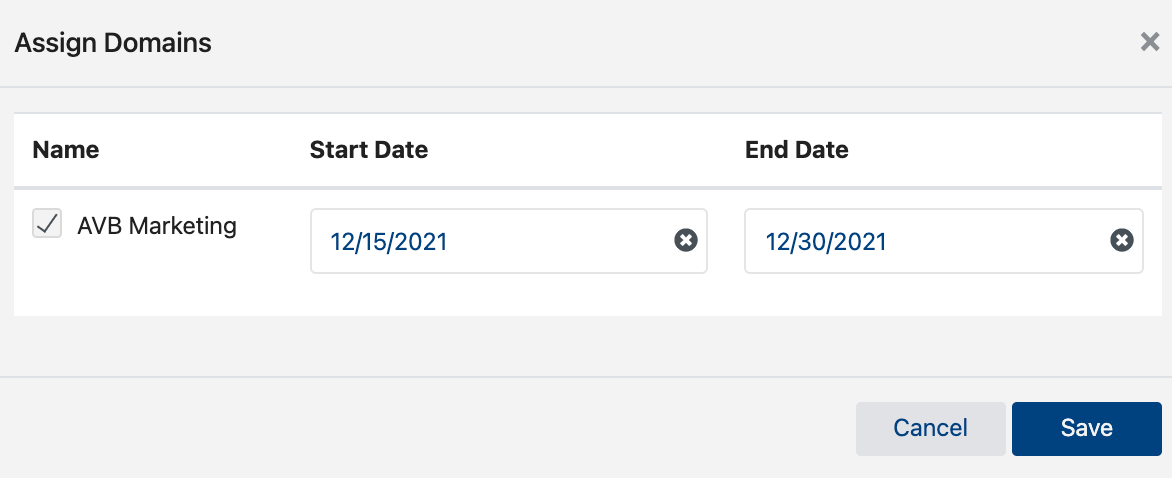
After designating the locations, click the Save button to save changes or the Cancel button to cancel any changes made.